Editor – Device Page
Use the Device page to view, select, and modify general device settings for a remote device. These settings are the minimum required for remote device functionality. The Device page of a remote device editor typically contains settings unique to its field device type(s) or to the EIE itself.
|
Click the thumbnail to see an example |
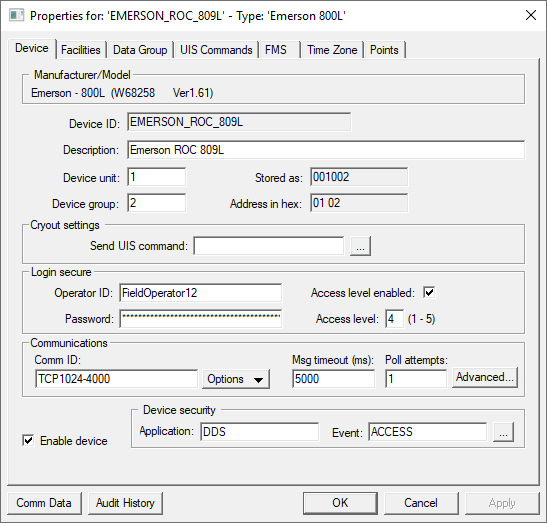
For more information, see Remote Device Editors.
Device Properties
The following table lists and describes specialized Device page properties for this device. See Device Page for common properties.
| Property | Description | ||||||
|---|---|---|---|---|---|---|---|
|
Device ID |
The unique identifier of an instance for this device. This free-form name must be unique in the DDS and the FAC. That is, it must be a name not used by any other communication device, import/export device, remote device, or facility. CygNet naming standards for device ID are as follows:
|
||||||
|
Description |
Displays a user-defined description of the remote device. A free-form description of the device. 32 character maximum. |
||||||
|
Device unit |
The numeric device address. |
||||||
|
Stored as |
|||||||
|
Device group |
The device group number used for two-byte addressing. |
||||||
|
Address in hex |
The hex equivalent of the address. Displays the user-specified decimal RTU address as a hexadecimal value, which is the format in which the value is communicated to the field device. |
||||||
| Cryout settings | |||||||
|
Send UIS Command |
The UIS command issued on cryout. It can be a single command or a group of commands. Add and configure commands on the UIS Commands page. UIS commands function in addition to a manufacturer's specified cryout responses, which are hard coded into the device driver. |
||||||
|
Login secure — Visible for ROC800 and ROC800L devices to configure secure login credentials associated with the enhanced security data group, LoginSec ("Login Secure Enhanced Request"). The Login secure field will display only for ROC800 and ROC800L devices that support the updated security firmware. |
|||||||
|
Operator ID |
Operator ID defines the identifier of an operator. 30 character maximum. The maximum number of user accounts is 64. |
||||||
|
Password |
Password defines the password assigned to the corresponding operator ID. When saved the password will be encrypted using a password hashing algorithm. 32 character maximum. |
||||||
|
Access level enabled |
Access level enabled indicates whether the security access level is enabled for this device. |
||||||
|
Access level |
Access level defines the security access level assigned to the corresponding operator ID. Set a value between 1 and 5. |
||||||
| Communications | |||||||
|
Comm ID |
The name of the communication device this remote device uses. Click the Options button to select from the choices in the drop-down menu. See Communication Devices. |
||||||
|
Options |
This button provides several communications-oriented options. Options are as follows:
|
||||||
|
Msg timeout (ms) |
Msg timeout (ms) displays the time in milliseconds a remote device waits for a valid response from an associated field device before timing out. This setting is not the same as similar settings on the currently active communication device and device failover settings. But these settings work in conjunction with one another. |
||||||
|
Poll attempts |
The number of times a remote device attempts to poll an associated field device until a valid response is received within the message timeout limit. If a poll is successful, no more poll attempts are made. If a poll is unsuccessful, the remote device continues to attempt polls until a valid response is received or until the Poll attempts setting is reached, whichever comes first. |
||||||
|
Advanced |
Click to access advanced communication device failover settings. |
||||||
|
Enable device |
Select whether to enable or disable the device. The default setting is disabled. If an invalid configuration is detected, the device will automatically be disabled. The device can be re-enabled after the invalid configuration is fixed. |
||||||
| Device security | |||||||
|
Application |
Defines the ACS security application name used to validate the users of this device. See Applications, Events, Permissions. |
||||||
|
Event |
Defines the ACS security event used to validate users of this device. Click … to select the security event. See Applications, Events, Permissions. |
||||||
|
Comm Data |
Enables you to open a modeless Communications Data Viewer dialog box. |
||||||
|
Audit History |
Enables you to view the audit trail for the device. |
||||||


